How do I access the basket order feature from the Watchlist Option Chain?
There are three ways of creating Basket in My Watchlist:
- Create & Add Contracts from Expanded Option Chain
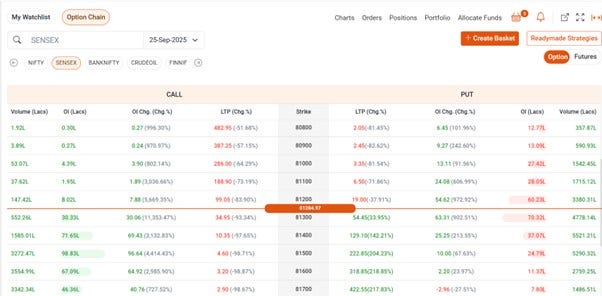
- Go to My Watchlist and click on the top right corner arrow (hover text: “Expand Option Chain”) to open the full option chain.
- The option chain opens with the strikes/strike prices in the centre.
- At the top of the screen of My Watchlist: whichever Script/option chain was opened by the user in compact option chain mode, the same option chain will get expanded on right side pertaining to that expiry date. To collapse the full screen mode of the option chain, click the left arrow (hover text: “Collapse Option Chain”).
- At the top of the expanded view, you will see:
a.) Create Basket
b.) Predefined/Readymade Strategies
c.) My Baskets - Toggle: OPT/FUT
2. Create Basket from Pre-defined Strategies:
- Click Predefined Strategies above the option chain.
- A list of strategy templates will appear (e.g., Straddle, Bull Call Spread).
- Select a strategy to auto-create a basket template.
- You will be prompted to Create Basket and enter a name.
- Once the basket is created:"Create Basket" changes to Place Order.
- If any parameters are changed, you must save again before placing.
- Click Place Order - A confirmation prompt “Confirm Order” will appear.
- After confirming, the Basket Order Acknowledgement page appears.
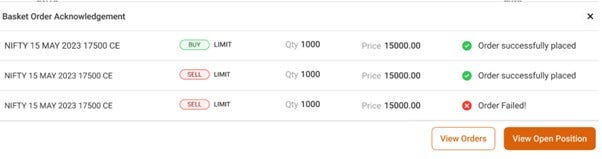
Here, the user will either View Orders or View Open Position CTA which will redirect him to Orders or Positions tab in Watchlist respectively.
3. Create Basket from Blank page in My Basket:
- Click My Baskets in the Watchlist.
- If no baskets exist, a blank page appears.
- Click + Create Basket.
- Enter basket name and proceed to add contracts.
- Further process is same as the standard Create Basket flow.